Debug Build With Trace Output

The debug build completely replaces the “a4ainfo.exe” debug utility and its usage procedure. Please do not complain that the “a4ainfo.exe” download link from further down this page redirects you up here, now!

Install and run normally, until the error happens, which you would like to report. Then exit your audio application. The debug build will have created a trace log file on your Windows desktop (in plain text format). This can be used to submit problem reports per email – along with a meaningful error description, of course 📧 feedback@asio4all.com!


Posted

in

, , ,

by

Tags:

Comments

4 responses to “Debug Build With Trace Output”

  1. Angel Emiliano Contreras Sánchez Avatar
    Angel Emiliano Contreras Sánchez

    como arreglo esto

  2. FL STUDIO asio error Error: pAudioCapturClient->getDevicePeriod() failed. Code:-2004287480

    1. Not an ASIO4ALL issue.

      This is a message from the Fl Studio ASIO driver, which sits on top of WASAPI. The error is returned by WASAPI, the Windows Audio engine.

      ASIO4ALL doesn’t need that.

  3. Radoslav Ivanov Avatar
    Radoslav Ivanov

    Sorry we couldn’t connect to audio device!
    How to fix that??

Leave a Reply to admin Cancel reply

Your email address will not be published. Required fields are marked *

This site uses Akismet to reduce spam. Learn how your comment data is processed.

Copyright © Michael Tippach

Imprint | Privacy

Powered by WordPress

ASIO is a trademark of Steinberg Media Technologies GmbH.  All other trademarks are the property of their respective owners, used for product identification purposes only.

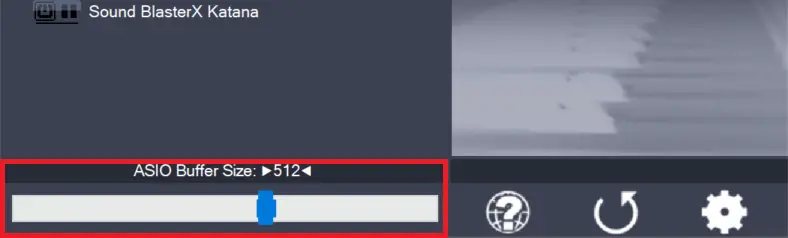
  • ASIO Buffer Size

    ASIO Buffer Size

    Use the slider to adjust the ASIO buffer size for the device currently highlighted. Smaller buffer size means lower latency. Once you hear crackles or audio becomes distorted, you need to increase the buffer size. ASIO buffer size directly relates to audio latency. Thus, you want to get a rather small value here. You may

    more

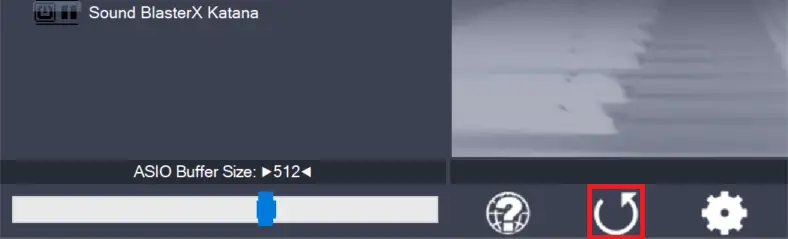
  • Load default settings

    Load default settings

    Pressing this button will reset all configuration options to their initial defaults. Use when audio initially worked and you later got lost in the configuration process. Also, if you updated your ASIO4ALL to a new version, this option will load the settings recommended by the new version.

    more

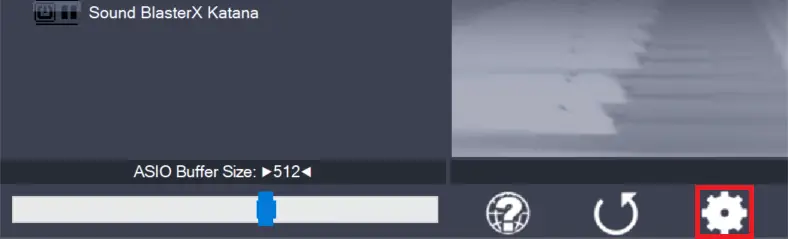
  • Switch to advanced mode

    Switch to advanced mode

    Switches the control panel into “advanced” mode, where you can fix things or completely mess them up at your discretion. “Advanced” mode is explained in the “Advanced Configuration” section of this document.

    more