Debug Build With Trace Output

The debug build completely replaces the “a4ainfo.exe” debug utility and its usage procedure. Please do not complain that the “a4ainfo.exe” download link from further down this page redirects you up here, now!
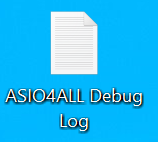
Install and run normally, until the error happens, which you would like to report. Then exit your audio application. The debug build will have created a trace log file on your Windows desktop (in plain text format). This can be used to submit problem reports per email – along with a meaningful error description, of course 📧 feedback@asio4all.com!


Posted

in

, , ,

by

Tags:

Comments

4 responses to “Debug Build With Trace Output”

  1. Angel Emiliano Contreras Sánchez Avatar
    Angel Emiliano Contreras Sánchez

    como arreglo esto

  2. FL STUDIO asio error Error: pAudioCapturClient->getDevicePeriod() failed. Code:-2004287480

    1. Not an ASIO4ALL issue.

      This is a message from the Fl Studio ASIO driver, which sits on top of WASAPI. The error is returned by WASAPI, the Windows Audio engine.

      ASIO4ALL doesn’t need that.

  3. Radoslav Ivanov Avatar
    Radoslav Ivanov

    Sorry we couldn’t connect to audio device!
    How to fix that??

Leave a Reply to admin Cancel reply

Your email address will not be published. Required fields are marked *

This site uses Akismet to reduce spam. Learn how your comment data is processed.

Copyright © Michael Tippach

Imprint | Privacy

Powered by WordPress

ASIO is a trademark of Steinberg Media Technologies GmbH.  All other trademarks are the property of their respective owners, used for product identification purposes only.

  • Introduction

    Introduction

    Welcome to ASIO4ALL! This manual enables you to make the most of your ASIO4ALL installation, especially when it comes to the advanced features newly introduced in this Version of ASIO4ALL. In order to achieve the best possible results with ASIO4ALL it is recommended that your computer is configured accordingly. For updates, help and further information,

    more

  • Getting Started

    Getting Started

    Setting up your audio software In order to make use of ASIO4ALL, you need to configure your audio software accordingly. How you would do this depends on your particular software application. Generally, you would always enter the audio configuration menu and select ASIO -> ASIO4ALL v2. There now should be a button to launch the

    more

  • WDM Device List

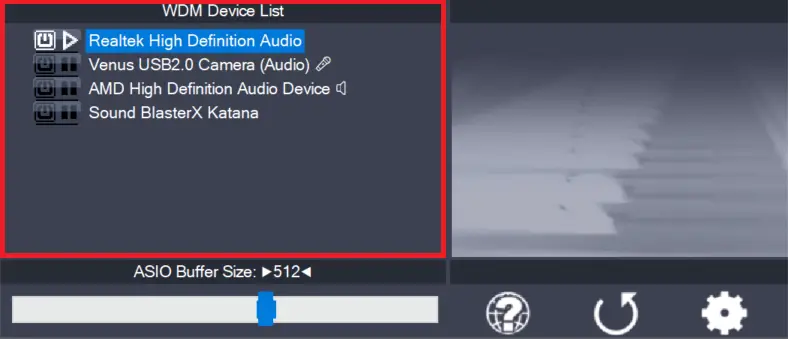
    WDM Device List

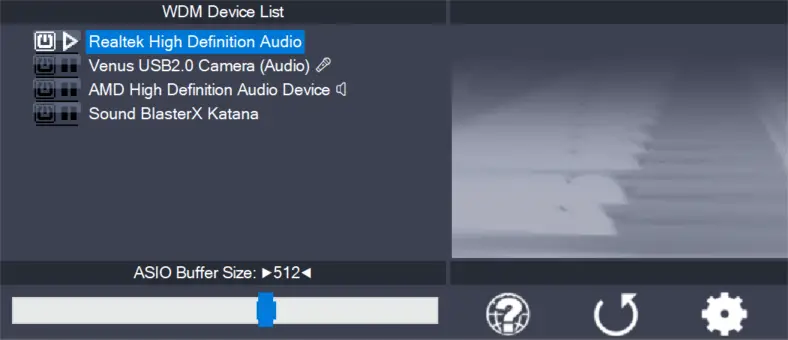
    This is the list of audio devices found in your system. Highlight the device that you want to make changes to. Note: All parameter changes always only apply to the device currently highlighted! Activate the device you want to use by clicking on the button next to the device name! In the picture above, the

    more