
Version 2.20

  • This version officially supports Windows 10 and Windows 11.
  • Also confirmed to work with Windows 7 and Windows 8, with some minor GUI visual artefacts, though.
  • Report bugs to feedback@asio4all.com!

Changes since version 2.19

  • Workaround for Realtek driver issue on AMD systems with HAP. Should work now in the default configuration with 512 samples ASIO buffer size.
  • Fix minor output buffer sync issue in 32 bit version only.
  • Fix WaveRT packet mode output latency calculation.
  • Can now again override ASIO buffer size in Studio One. Which is pretty much useless and confusing. But – when it comes to options – more is always better, right?
  • New feature added: Right mouse button on the ASIO4ALL system tray icon now pauses audio inside the DAW, releases the audio hardware and CPU resources used for audio processing.
    While this does not make ASIO4ALL multi-client, it somewhat simplifies switching back and forth – not only between your DAW and “other” Windows audio.
    It also allows you to have several DAWs open at the same time – and switching between them on the fly:

Posted

in

,

by

Tags:

Comments

One response to “Version 2.20”

  1. Michael,
    Your dedication is so appreciated for such a useful wrapper – ty xx

Leave a Reply to Darchy Cancel reply

Your email address will not be published. Required fields are marked *

This site uses Akismet to reduce spam. Learn how your comment data is processed.

Copyright © Michael Tippach

Imprint | Privacy

Powered by WordPress

ASIO is a trademark of Steinberg Media Technologies GmbH.  All other trademarks are the property of their respective owners, used for product identification purposes only.

  • ASIO Buffer Size

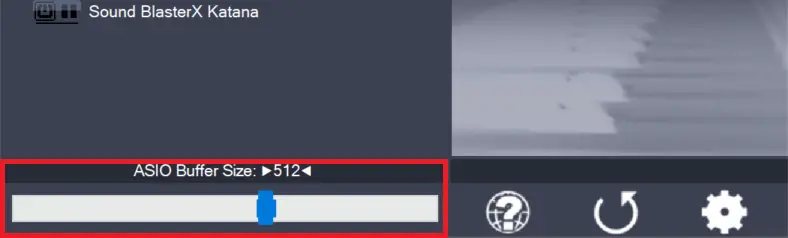
    ASIO Buffer Size

    Use the slider to adjust the ASIO buffer size for the device currently highlighted. Smaller buffer size means lower latency. Once you hear crackles or audio becomes distorted, you need to increase the buffer size. ASIO buffer size directly relates to audio latency. Thus, you want to get a rather small value here. You may

    more

  • Load default settings

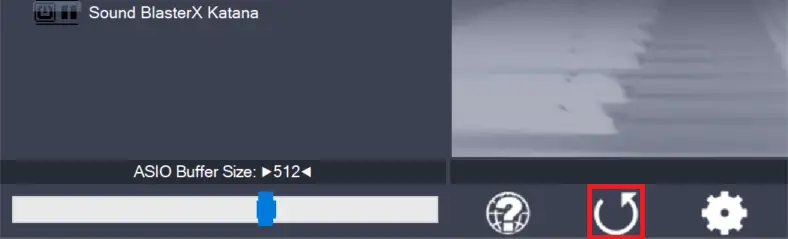
    Load default settings

    Pressing this button will reset all configuration options to their initial defaults. Use when audio initially worked and you later got lost in the configuration process. Also, if you updated your ASIO4ALL to a new version, this option will load the settings recommended by the new version.

    more

  • Switch to advanced mode

    Switch to advanced mode

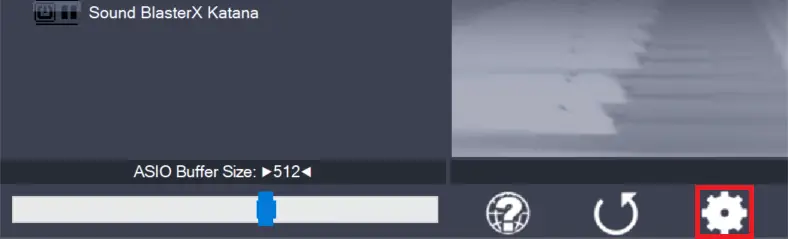
    Switches the control panel into “advanced” mode, where you can fix things or completely mess them up at your discretion. “Advanced” mode is explained in the “Advanced Configuration” section of this document.

    more