

- This version officially supports Windows 10 and Windows 11.
- Also confirmed to work with Windows 7 and Windows 8, with some minor GUI visual artefacts, though.
- Report bugs to feedback@asio4all.com!
Known issues
- Early downloads had a problem which could cause some configurations to crash. Version number in the control panel title bar should be “2.20.1” and the installer “ASIO4ALL_2_20_1.exe”. When different, simply re-download and re-install!
- Generally also works quite well on Windows 11 for ARM64, albeit there is no native ARM version yet. The “Qualcomm Aqstic” integrated mic will not work with the defaults, though. Select “Alternative Buffer Synchronization” in the ASIO control panel advanced settings!
Changes since version 2.19
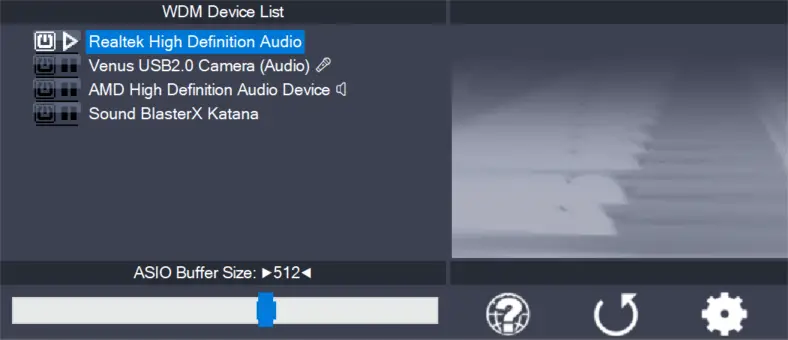
- Workaround for Realtek driver issue on AMD systems with HAP. Should work now in the default configuration with 512 samples ASIO buffer size.
- Fix minor output buffer sync issue in 32 bit version only.
- Fix WaveRT packet mode output latency calculation.
- Can now again override ASIO buffer size in Studio One. Which is pretty much useless and confusing. But – when it comes to options – more is always better, right?
- New feature added: Right mouse button on the ASIO4ALL system tray icon now pauses audio inside the DAW, releases the audio hardware and CPU resources used for audio processing.
While this does not make ASIO4ALL multi-client, it somewhat simplifies switching back and forth – not only between your DAW and “other” Windows audio.
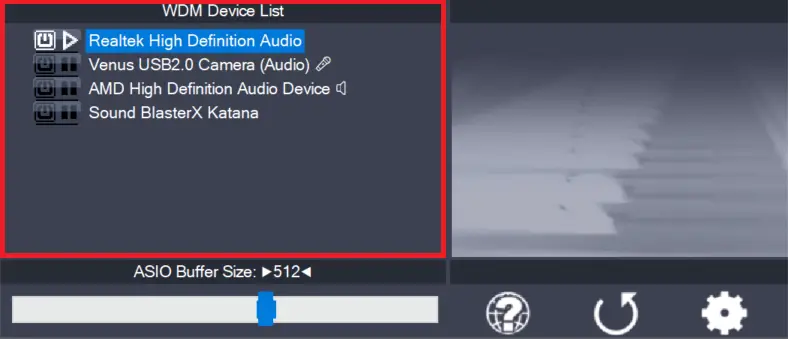
It also allows you to have several DAWs open at the same time – and switching between them on the fly:



Leave a Reply