
Version 2.17

  • This version officially supports Windows 10 and Windows 11.
  • Also confirmed to work with Windows 7 and Windows 8, with some minor GUI visual artefacts, though.
  • Report bugs to feedback@asio4all.com!

Changes since version 2.17 Beta 2:

  • Squeeze another millisecond out of USB 1 audio device latency
  • Completely remove the legacy “Use hardware buffer” – option, along with the selection of 3 or 4 KS buffers. This is >20 years old stuff and does not serve any meaningful purpose on modern systems.
  • Fix an issue where some audio inputs would not show up
  • Lower CPU utilization also in Wavert polling mode when “Low Power Mode” option is enabled
  • Improve input/output latency reporting
  • The installer now has a “Debug” option. When selected, a debug handler will be added, catching application errors instead of just silently crashing to desktop.
  • Minor fixes for improved stability and performance

Posted

in

,

by

Tags:

Comments

22 responses to “Version 2.17”

  1. Kimberly Avatar
    Kimberly

    Hello All,
    I am not tech savvy but I am attempting to Download the latest version, however I’m receiving a prompt to download another browser on my computer
    Is this acceptable. I do not want to download any third part software.

    1. Try to not click on ads when your intent was to not click on ads. They are clearly marked as ads.

Copyright © Michael Tippach

Imprint | Privacy

Powered by WordPress

ASIO is a trademark of Steinberg Media Technologies GmbH.  All other trademarks are the property of their respective owners, used for product identification purposes only.

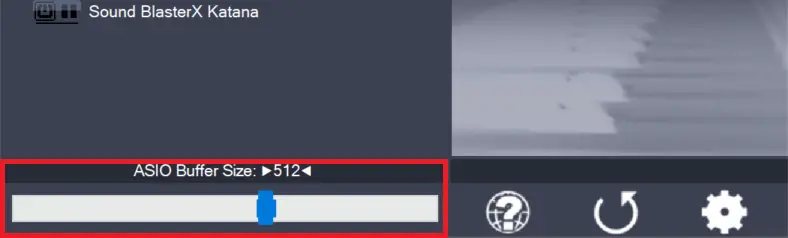
  • ASIO Buffer Size

    ASIO Buffer Size

    Use the slider to adjust the ASIO buffer size for the device currently highlighted. Smaller buffer size means lower latency. Once you hear crackles or audio becomes distorted, you need to increase the buffer size. ASIO buffer size directly relates to audio latency. Thus, you want to get a rather small value here. You may…

    more

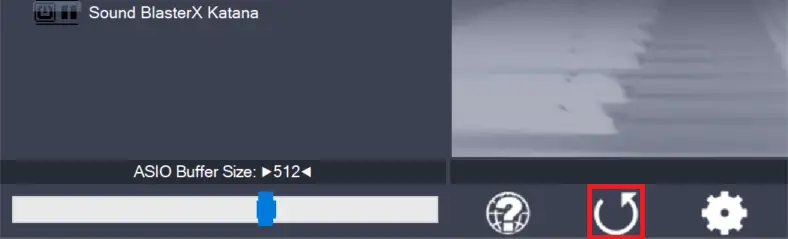
  • Load default settings

    Load default settings

    Pressing this button will reset all configuration options to their initial defaults. Use when audio initially worked and you later got lost in the configuration process. Also, if you updated your ASIO4ALL to a new version, this option will load the settings recommended by the new version.

    more

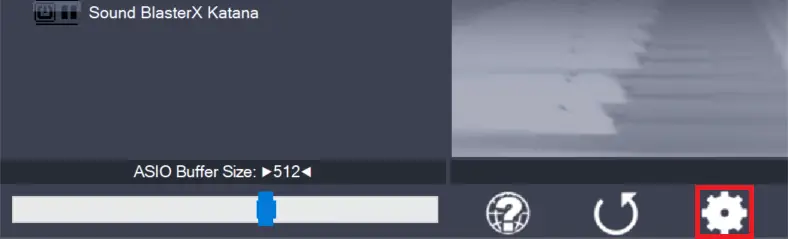
  • Switch to advanced mode

    Switch to advanced mode

    Switches the control panel into “advanced” mode, where you can fix things or completely mess them up at your discretion. “Advanced” mode is explained in the “Advanced Configuration” section of this document.

    more