
Version 2.17

  • This version officially supports Windows 10 and Windows 11.
  • Also confirmed to work with Windows 7 and Windows 8, with some minor GUI visual artefacts, though.
  • Report bugs to feedback@asio4all.com!

Changes since version 2.17 Beta 2:

  • Squeeze another millisecond out of USB 1 audio device latency
  • Completely remove the legacy “Use hardware buffer” – option, along with the selection of 3 or 4 KS buffers. This is >20 years old stuff and does not serve any meaningful purpose on modern systems.
  • Fix an issue where some audio inputs would not show up
  • Lower CPU utilization also in Wavert polling mode when “Low Power Mode” option is enabled
  • Improve input/output latency reporting
  • The installer now has a “Debug” option. When selected, a debug handler will be added, catching application errors instead of just silently crashing to desktop.
  • Minor fixes for improved stability and performance


Posted

in

,

by

Tags:

Comments

19 responses to “Version 2.17”

  1. Amos Maina Avatar
    Amos Maina

    i need drivers

  2. this is a really bad version for me, its unusable compared to previous versions.

    1. in previous versiosn it would cut out sometimes, but it was just silence, now i get loud cracks and pops. making my projects unusable

      1. Michael Tippach Avatar
        Michael Tippach

        It should do neither. What are you trying to do?

  3. Good morning, there is a confirmed issue when recording, playing, or rendering audio through ASIO4ALL 2.17 (March 4, 2026): the driver produces noticeably lower volume output compared to the Steinberg Built-in ASIO Driver 1.0.9 (December 18, 2024), which is universally compatible across devices and DAWs. Reference: https://helpcenter.steinberg.de/hc/en-us/articles/17863730844946-Steinberg-built-in-ASIO-Driver-information-download

    I am running Reaper 7.65 (March 11, 2026) on Windows 11. Beyond the volume discrepancy, there is an additional stability issue specific to the Reaper + ASIO4ALL interaction. If you enable “Request Sample Rate” or “Request Block Size” within the DAW, and you have installed ASIO4ALL with the Program + Offline Settings + Debug components, VSTi plugins will frequently crash, sometimes consistently. This affects standalone instruments as well (e.g., VSL Pianos, Pianoteq, among others).

    There is a further problem worth flagging: even when using a different audio driver (WASAPI, Steinberg, etc.) whether inside a DAW or through a standalone plugin, the ASIO4ALL debug screen and its crash report will still appear on the user’s screen after an application crash. This strongly suggests that ASIO4ALL remains active in the Windows session regardless of which audio driver is actually selected, which is unacceptable behavior for a driver that should be idle.

    It is also worth noting that incoming MIDI-related updates (1.0 and 2.0) to Windows 11 should be monitored closely, as they have the potential to further destabilize the system and compound these failures. Discord by Microsoft related to MIDI: https://discord.gg/tqsBN8v4

    Workaround: Uninstall ASIO4ALL 2.17 entirely, then reinstall it without the Offline Settings and Debug components. Do not use the “Request Sample Rate/Block Size” option inside the DAW. Instead, configure sample rate and block size directly through the ASIO4ALL GUI via the “ASIO Configuration” button. While Debug mode is a valuable diagnostic tool for developers and audio engineers, it is unnecessary for end users and performers, and its presence directly contributes to the instability described above. The root cause behind the Offline Settings + Debug interaction still warrants further investigation, but I am setting that aside for now.

    1. 1.) The Steinberg ASIO driver sits on top of the Windows audio stack, hence the high latency and the different audio volume level. The latter is the result of audio enhancements by APOs inside the Windows audio stack. If you mix with processed audio output, expect your rendered output later on to sound dull, thin, whatever…

      2.) Yes, the “Debug” option is intended for … debugging. Having said that, it still should not introduce problems solely by itself. Current state of affairs is reflected in the debug build: https://asio4all.org/debug-build-with-trace-output/ – if any one issue still occurs, there will be additional data collected. If it does not, it’s likely already been fixed.

      3.) The Off-line settings option should be inert. All it does is copy the “a4apanel.exe” file into the install folder. And this one does exacly nothing unless actually executed by the user.

      In order to change options, you do not have to uninstall first. Just re-install with options checked/unchecked as desired.

  4. If i am using bluetooth headphones atm there’s not any options for them?

  5. what stupid AI ‘art’

    1. anonymous Avatar
      anonymous

      haha lol yeah

    2. Makes me incredibly happy to learn that this is the only thing left to complain about.

  6. Ростислав Avatar
    Ростислав

    где настоящий файл для скачивания программы а не самого сайта???

  7. Dear Michael,
    I have a suggestion that could greatly improve stability on cheap motherboards and problematic systems.
    My working setup is:
    One application uses ASIO4ALL for input only
    Another application uses ASIO4ALL for output only
    They communicate through the local loopback address (127.0.0.1) with a small buffer
    The input stream goes through this loopback buffer to the output
    This setup is extremely stable even on bad motherboards, because:
    Input and output are decoupled
    The loopback buffer absorbs Windows DPC spikes and scheduling jitter
    They do not block each other
    Clock is still handled properly
    This proves that stability does not come from lower latency or better clock alone,
    but from decoupling input and output with a buffer between them.
    Since you already separated the main buffer and main clock in v2.17,
    could you implement this internal loopback buffer inside ASIO4ALL automatically?
    The idea is:
    ASIO4ALL handles input in one thread/stream
    Passes through an internal small buffer (like 128–512 samples)
    ASIO4ALL handles output in another thread/stream
    All inside the DLL, transparent to the user
    If you think using the local loopback is not ideal, you could also use shared memory or a ring buffer in system memory to achieve the same decoupling effect.
    This would not break compatibility,
    but would make ASIO4ALL stable at low latency even on weak motherboards.
    Thank you for your amazing work!

    1. It would add exactly the size of the intermediate buffer to the real round trip latency, regardless of the seemingly lower ASIO buffer size.
      WASAPI shared mode would let you do that. Extremely low ASIO buffer sizes on paper, at the expense of much higher actual latency from additional buffering.

  8. Starbite Studios Avatar
    Starbite Studios

    Version 2.17 has a virus in it… i downloaded it on 2 different computers to make sure & both downloads got flagged as virus.

    1. And you know this for certain because 4 out of a Gazillion scanners on Virustotal flagged it as “Gen:Trojan.Heur.FU.cq2@aW24Roni”.

      https://www.virustotal.com/gui/file/39f1711bdba8578b19a9df8fc6e62510bc8b803025e07f72050f0dd1c515ba7f

      Where “Heur” means “Heuristics”.

      Seems you already have that particular one on your computer, since you’re using Windows: https://learn.microsoft.com/en-us/answers/questions/3897108/gen-trojan-heur2-fu-ju0@ao2unhpi-(b)-detected-is-t

  9. Don’t remove the 3 or 4 KS buffers. Some virtual audio channels require 3 or 4 buffers at low latency settings; otherwise, you will get noise and audio glitches.

  10. S/PDIF (RealTek) has massive problems.
    1. It outputs a proper sound in power mode but the CPU usage is brutal: 4 threads are peaking at 95% every 2-3 seconds (not much less inbetween according to TaskManager) on a modern CPU.
    2. In low power mode it either outputs a distorted sound after being silence for around 30 seconds or no sound at all.

    Every input/output device except S/PDIF is disabled and configured for 44.1 khz/24 bit exclusive mode in Windows 11 control panel. ASIO4ALL settings are default except 128 buffer size.

    On my previous computer the only ASIO4ALL version that actually worked (at least for S/PDIF) was the old 2.14 version.

    1. 1. The high CPU usage perceived is the result of the main audio thread not letting the OS enter a lower CPU power state -> when the thread is otherwise idle (not processing host audio data). The scheduler spreads the load across 4 cores, supposedly for on die hotspot mitigation. This does not steal a single CPU cycle away from your DAW!

      2. A buffer size of 128 in low power mode is ambitious, because anything below 4ms lets the internal buffering scheme aim for lowest latency vs. anything else.

      (a) Did you also try 192 samples = 4ms at 48kHz?
      (b) Also, make sure you adjust the CPU throttling accordingly:

      How to Disable Windows CPU Throttling

      1. Press Win + R, type powercfg.cpl, and press Enter.
      2. Click Change plan settings next to your active power plan.
      3. Select Change advanced power settings.
      4. Expand Processor power management by clicking the plus (+) sign.
      5. Expand Minimum processor state and set it to 100%.
      6. Expand Maximum processor state and set it to 100%.
      7. Click Apply and then OK to save your changes.

      (c) “Alternative Buffer Synchronization” could be your friend
      (d) The “30 seconds silence” is likely due to ASIO4ALL restarting internally through its drop out detection. When this is the case, the system tray icon will turn red, with an exclamation mark. You can always run the ASIO4ALL trace version (just briefly, as sometimes it writes a lot of output data in a very short time): https://asio4all.org/debug-build-with-trace-output/

      1. (c) “Alternative Buffer Synchronization” could be your friend

        Indeed, it’s working now in preferred low power mode! Thank you!

        (I also reverted all my unnecessary/unsuccessful changes yesterday trying to get it working, e.g. disable all secondary input/output devices, switch to 44.1 khz, increase buffer size to 256 though settled on 192 now. I left the default minimum power setting at 0% since I already configured my computer for DAW usage, including lots of higher/keep power setting changes.)

Leave a Reply to anonymous Cancel reply

Your email address will not be published. Required fields are marked *

This site uses Akismet to reduce spam. Learn how your comment data is processed.

Copyright © Michael Tippach

Imprint | Privacy

Powered by WordPress

ASIO is a trademark of Steinberg Media Technologies GmbH.  All other trademarks are the property of their respective owners, used for product identification purposes only.

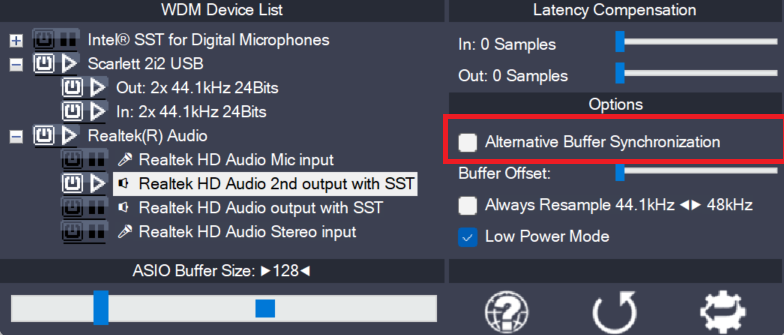
  • Alternative Buffer Synchronization

    Alternative Buffer Synchronization

    The WaveRt driver ecosystem has evolved beyond the fomer distinction between just “Pull Mode” and “Polling”. It has become a little more complex. ASIO4ALL always aims to use the buffering algorithm most suitable for any particular device. This option lets you override the automed pick and select an alternative buffering scheme, where available. Use this

    more

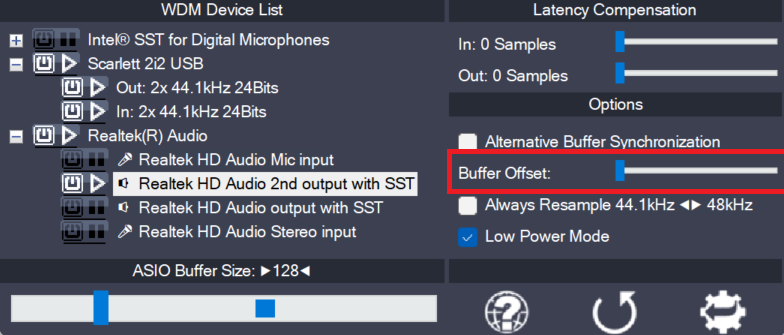
  • Buffer Offset

    Buffer Offset

    This slider affects the circular buffer read/write cursor position of the current WaveRt pin. The adjustable range equals the size of the entire circular buffer. The offset is relative to the cursor position as calculated by ASIO4ALL. In the unlikely event that some manual adjustment is required, you can try to find a better cursor

    more

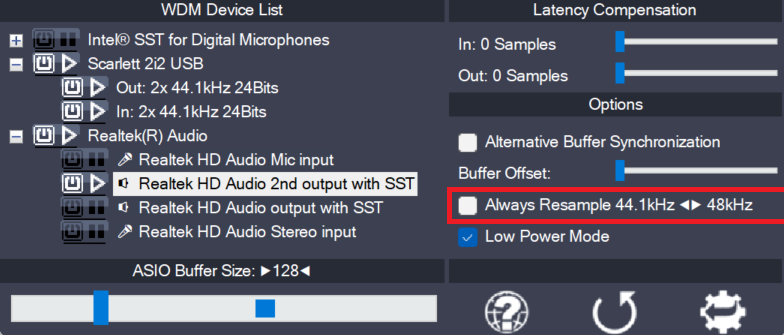
  • Always Resample 44.1<->48 kHz

    Always Resample 44.1<->48 kHz

    ASIO4ALL can do real time resampling of 44.1 kHz audio to/from 48 kHz. Resampling will automatically take place whenever ASIO4ALL is opened for 44.1 kHz and the WDM driver does not support this sample rate. There may, however, be instances in which case an audio device will support 44.1 kHz only by resampling internally. More

    more