
Version 2.17 Beta 2

  • This version officially supports Windows 10 and Windows 11.
  • Also confirmed to work with Windows 7 and Windows 8, with some minor GUI visual artefacts, though.
  • Report bugs to feedback@asio4all.com!

Changes since version 2.17 Beta 1:

  • The “Force WDM Driver to 16 Bit” – switch is gone. it had no real useful function anymore and most >16 bit devices do not support it anyway.

    Instead, we have a new global option called “SPL Low Power Mode”.
    What this does, when checked, is to lower the CPU usage in certain low load scenarios, allowing the processor to enter a lower power state. The backside being the impact of the exit latency from deep power states, which could lead to audio dropouts. After all, there are configurations where multiple kernel events are fired within one single millisecond – all of which need to be processed in time.

    What you should do: try, if you can enable this option with no adverse effect on audio quality. If afterwards you experience intermittent stuttering, leave this option disabled!

    Note that neither setting will increase/decrease actual CPU utilization in cases of high audio processing load. It merely determines how the main audio thread will spend its idle time.
  • Fix various potential crash sources in a number of corner case scenarios.
  • Fix old, annoying UI bug where device list items would not properly repond to enable/disable action, epecially when the particular item is currently inactive.
  • On-board audio inputs on Lenovo Legion are working now.
  • Improve handling in case the current audio device is in use elsewhere, including by the dreaded MS GS Software Synth. Forced takeover became even more assertive.


Posted

in

,

by

Tags:

Comments

Leave a Reply

Your email address will not be published. Required fields are marked *

This site uses Akismet to reduce spam. Learn how your comment data is processed.

  • Getting Started

    Getting Started

    Setting up your audio software In order to make use of ASIO4ALL, you need to configure your audio software accordingly. How you would do this depends on your particular software application. Generally, you would always enter the audio configuration menu and select ASIO -> ASIO4ALL v2. There now should be a button to launch the

    more

  • WDM Device List

    WDM Device List

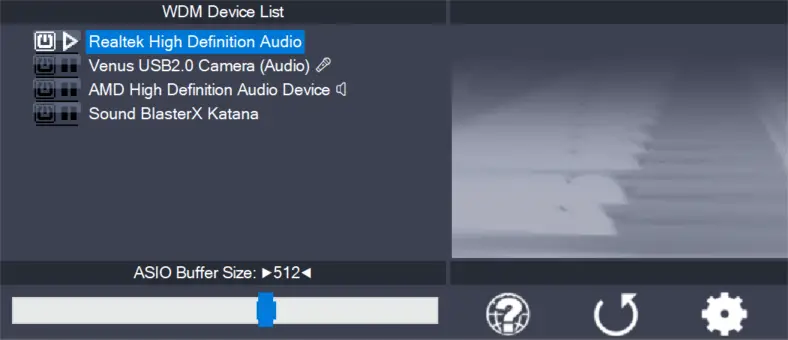
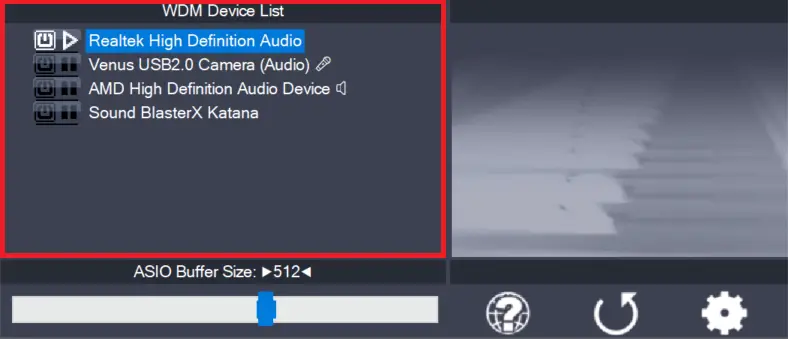
    This is the list of audio devices found in your system. Highlight the device that you want to make changes to. Note: All parameter changes always only apply to the device currently highlighted! Activate the device you want to use by clicking on the button next to the device name! In the picture above, the

    more

  • ASIO Buffer Size

    ASIO Buffer Size

    Use the slider to adjust the ASIO buffer size for the device currently highlighted. Smaller buffer size means lower latency. Once you hear crackles or audio becomes distorted, you need to increase the buffer size. ASIO buffer size directly relates to audio latency. Thus, you want to get a rather small value here. You may

    more

  • Load default settings

    Load default settings

    Pressing this button will reset all configuration options to their initial defaults. Use when audio initially worked and you later got lost in the configuration process. Also, if you updated your ASIO4ALL to a new version, this option will load the settings recommended by the new version.

    more

  • Switch to advanced mode

    Switch to advanced mode

    Switches the control panel into “advanced” mode, where you can fix things or completely mess them up at your disposal. “Advanced” mode is explained in the “Advanced Configuration” section of this document.

    more